

Before you start
- Log in to the panel and choose the right company. Its name also appears under the Asystio heading in the assistant panel.
- You need access to the assistant and available AI credits. Working with company data also requires the right permissions for the given module.
- To practise, use a general topic or demo data. Do not paste passwords, SMS codes, integration keys or your whole client database.
Work within your access
The chat respects module permissions, also when it reads invoices, charts and financial analyses. Access to the assistant does not give you access to all of the company's finances. After you change company or permissions, open the result again in the current context.
An appointment proposal can lead to a Calendar form for you to review. Check the service, client, person and time. Preparing a proposal does not save the appointment. You can confirm that it was saved in the target module.
If a command was blocked, read the message and open the right module. Repeating the request does not widen your permissions and does not replace approval of sending, publishing or a document.
Check what you approve
Before you decide, read the name of the action. "Send e-mail" orders the sending. The provider accepting it does not confirm delivery to the recipient. "Approve contract draft" accepts the draft. Signing and sending remain separate actions.
"Uruchom harmonogram publikacji" (Start publishing schedule) starts the prepared plan. Check the text, channels and dates before you approve. Previewing the package or hiding it does not carry out or reject a decision.
If you see "Needs separate review" or a note that execution is unavailable, you can look at the result. This view will not carry out that operation. A JPK package is not sent just because you approved the prepared material.
Open the chat in your company
- On the bottom bar, expand the Asystio AI controls and choose the gold "Open Asystio AI" button. On a computer, the buttons also appear when you hover over the bar.
- Check the company name under the Asystio heading. Choose "Chat" to write to the assistant.
- You can switch between the Chat, History and Materials tabs with the keyboard arrows. Changing tabs keeps any unsent text in the message field.
- If you are starting a different matter, use the plus "Nowa rozmowa" (New conversation) at the top of the panel. To correct an earlier answer, stay in the same conversation.
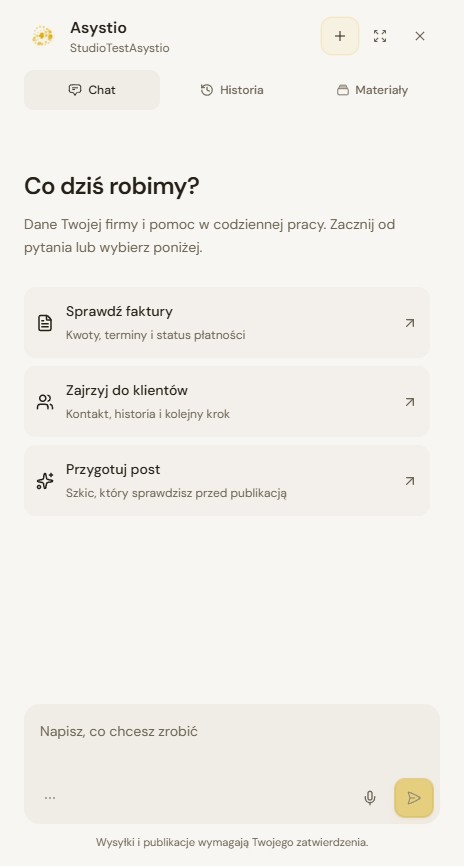 Check the company, choose Chat and write a specific request in the field at the bottom.
Choose a tool and prepare the command
- Choose "Show Asystio tools" next to the message field. The menu opens above the field. Escape closes the menu and returns focus to the button. It does not close the whole panel.
- "Mind map", "Presentation" and "Topic research" prepare a command in Chat and keep the description you typed. Fill in the topic and send the message only when you want to order the work.
- "Analiza firmy Pro" (Company analysis Pro) opens the analysis setup. Check the scope and cost before you start it separately. Choosing the tool does not start a paid analysis.
- In Materials you will find the available plans and previews. "Check current decisions" on a package preview opens the To approve tab in Asystio's work. Going there does not approve or send anything. Access depends on your permissions.
Preview and current state (note) A preview of a proposal does not confirm that the action was carried out. Before you decide, check the current state, scope and recipient in the relevant module.
Start from the GAIA dashboard
- In the assistant panel, choose "Open Asystio fullscreen". In a new conversation, GAIA fetches the dashboard of the current company: matters to decide, available signals and the horizon.
- Choose a matter in the queue to change the active preview. Choosing alone does not carry out any action. The button on a matter leads to the next step. You approve saving or sending separately.
- Opening the result of an existing conversation keeps that result. "Nowa rozmowa" starts a new thread. Earlier history and tasks are not deleted.
- Voice starts when you enter. "End the voice conversation with Asystio" disconnects the call. Simply hiding GAIA does not turn off the microphone.
- If the dashboard was not read, say "Show the dashboard" to try again. No available data does not mean zero, or that the company has no matters.
Say what result you want
- In the "Write what you want to do" field, state the result, topic and channel. Example: "Prepare a draft Facebook post about preparing for a visit. Text only, no graphic. Do not publish or send."
- Add any important limits, such as length, tone or information that must not be added. They do not replace checking the finished text.
- Choose "Send to Asystio" or press Enter. Shift + Enter adds a new line without sending the command.
- Wait for the text or preview under the answer. The message "I have accepted the request" means work has started, not that the draft is ready.
- For a longer task, finished parts may appear gradually. The note "GAIA nadal pracuje" (GAIA is still working) means this is part of the answer. Check every draft before use. A draft appearing does not approve saving or sending.
- To check progress, expand "Etapy odpowiedzi" (Answer stages) under your command. The answer and its result stay in the same conversation.
See also:
Read the whole draft before you use it
- In the post example, find the preview marked "Szkic do akceptacji" (Draft for approval). Read all of the text, not only the start of the answer.
- Check the facts, promises, prices, company name and channel. Remove information you cannot confirm and wording that does not suit your company.
- For a text post you see "Post tekstowy" (Text post). If you also ordered a graphic, check it separately. A finished text does not mean a finished image.
- Use "Copy text" if you want to move the text to an editor. Copying does not save the post in Studio and does not publish it.
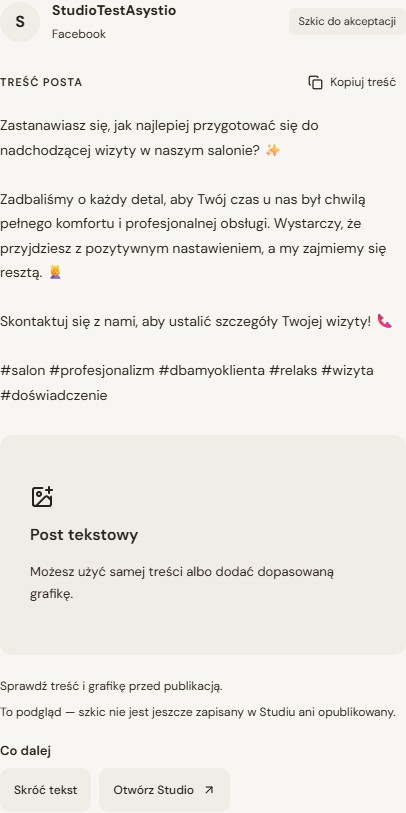 The preview lets you read the text and check its state before you go to Studio.
AI may add too much (warning) A draft may not keep all the limits from your command. Check and correct the result instead of treating it as approved company text.
Ask for a correction in the same conversation
- Under the post preview, in "Co dalej" (What next), you can choose "Shorten text". The new version appears as "Shortened post draft", marked "Text for recipients" and with its own "Copy text". This is text to use in the post, not advice from the assistant to you.
- You can also specify the change, for example: "Shorten the previous answer to two sentences. Remove general promises and hashtags. Do not add facts."
- Compare the new version with the previous one. A corrected answer does not automatically replace the earlier preview and does not update a published post. "Unfinished post draft" means a partial answer, not text ready to use.
- Choose the version you want to use and check it once more in the target editor.
Scroll a result in full-screen GAIA
- If a quote, a list of appointments or a document does not fit in the preview, scroll its content with the mouse wheel or with an upward swipe on a touch screen. The buttons under the result stay in place.
- On the keyboard, use Tab to reach the content area. Page Down and Page Up scroll the result. The left and right arrows move between results, outside an edited field.
- "Enlarge" opens a larger preview. Enlarging or scrolling does not save changes and does not approve any action.
Check the numbers on a chart
- Write "Show a chart of appointments by status. Read only.". You get a chart of the saved statuses with a legend and the number of appointments.
- For several months, use "Show a chart of appointments from the last 6 months. Read only.". You can check amounts with the command "Show a revenue chart for the last 12 months. Read only." in a company where you have access to Finance.
- Read the unit, period and source under the result. Appointments come from Calendar entries, and the revenue chart comes from invoices. The available range depends on your permissions.
- Choose "Open Asystio fullscreen", then "Enlarge" on the chart you want. In the smaller preview, the status legend appears under the ring. Escape closes the enlarged view and returns to its button.
- Check the note about the current, still open month. Its data may still change, so be careful when comparing it with full months. A message about few data points describes a limit of the reading.
- If a reading fails, try again. After you change company, account or access, ask for a new chart. Reading and enlarging do not save changes in the company.
Check a month and choose a day
- Write, for example, "Show the monthly calendar for September 2026". Give the month and year if you want to go back to a specific period.
- You can give just the month name, for example "Show the calendar for October 2026". You get the full month. A request for a week stays a week view.
- Under the answer you will see the whole month, the number of saved appointments and a status legend. Colours are an extra hint. Status names and numbers stay readable without them.
- Choose a day to see the specific appointments: times, service, client, the person in charge and the saved status. On the keyboard, move to the day with Tab and press Enter.
- On an appointment, choose "Details". The same form you use in Calendar opens. Available actions depend on your permissions.
- "Finish appointment" first opens a confirmation. Save the finish only after the service is done. "Go back" closes the confirmation without changing the status. A date in the past does not by itself confirm the appointment was carried out.
- "Rozliczenie" (Settlement) opens the invoice data or explains the next step. An invoice draft and a payment confirmation are separate actions. Opening a preview does not charge the client.
Check the scope and the result of the reading (note) The day's list covers appointments within your current access. No saved appointments does not confirm that the whole team is available. A reading error does not mean an empty day. Try again or check access with the owner.
Choose a matter and prepare a work plan
- Write "What should I do today?". GAIA gathers the data available to you and prepares the result in the background. A note that the request was accepted does not mean the analysis is finished.
- Read the chosen points. They may concern, for example, open tasks, receivables or stock. The proposed order is not a risk measurement or a promise to recover money.
- On open tasks, choose "Arrange a work plan". You get a proposed order of real tasks, with a short reason and the saved due date. The plan does not change due dates or assignments.
- In the plan, choose "Open task". The current status, description and checklist appear under that item. The details are read again, so they may differ from the earlier plan.
- If you can edit, choose "Edytuj zadanie" (Edit task) or "Edit checklist". A Workspace form opens without leaving GAIA. "Zapisz zmiany" (Save changes) confirms the save. "Anuluj" (Cancel) closes the form without changes. After saving, ask for a new plan if you want it to reflect the new status or date.
- Choose "Zobacz zadania" (See tasks) if you only need the list. The reading covers up to 20 open tasks within your access.
- You will find the reasoning under "Dlaczego ten priorytet?" (Why this priority?) on tasks, or "Show the basis" on the other points. Sources and scope appear in the same place.
- A follow-up question uses the same observation of the data. To include later changes in the company, ask for a new assessment.
You decide on the action (note) The analysis alone sends nothing, publishes nothing and changes nothing in the company. After you change company, account or permissions, you need a new reading. The finances of the whole company are available to the owner and the company administrator.
Prepare a quote and save a reviewed draft
- Ask, for example, "Prepare a quote for Men's haircut", using the exact service name from the company's catalogue. The catalogue price is a starting point, not an approved quote.
- You can also write "Can you prepare a quote draft for the Men's haircut service from our catalogue?". The result appears as a draft to complete.
- Choose "Complete the quote". Fill in the title and the recipient. "Add service" and "Dodaj produkt z magazynu" (Add product from inventory) open the company catalogue. "Add your own item" lets you type an item by hand.
- Confirm whether prices are net or gross, and the VAT rate of each item. After choosing from the catalogue, confirm the basis of the price. Choosing a product does not take it out of Inventory. Check the quantities and the amount to pay.
- The panel, fullscreen and enlarged view keep the fields you edited on the current page. Switching between views does not save the quote in CRM. If you want to keep the draft after a page refresh, check it and save it separately.
- Choose "Check the save", review the summary and use "Zapisz szkic w CRM" (Save the draft in CRM). Wait for the confirmation. You will find the draft in the quotes in CRM. It has not been sent to the recipient.
- If you see "GAIA proposes a change", compare the proposal with the quote you edited. "Apply the proposal" brings in the changes without overwriting your manual corrections. "Keep my version" leaves the current fields.
- After a change, check the quote again before saving. New items may need a price and VAT. A GAIA proposal does not automatically change a draft already saved in CRM.
- After the save is confirmed, you can rate the result as "Przydatny" (Useful) or "Nieprzydatny" (Not useful). The rating does not change the saved quote. After a negative rating, the next draft starts with a manual review.
Do not guess the rate or the price (warning) A missing price, quote type or VAT must be filled in before saving. You set the rate for your own service. The assistant does not replace tax advice. A reading error does not mean the draft was not saved. Check the quotes in CRM before you create the next one.
Edit a product or correct stock
- Write "Show inventory". Check the name and SKU of the chosen item. "Stan w odczycie GAIA" (Stock in the GAIA reading) describes the saved reading, not later changes in stock.
- "Edytuj produkt" (Edit product) opens the Inventory form. "Check price" reads the current sale price, cost and unit. "Edit data and price" opens the prices tab. Without VAT, margin or profit cannot be calculated.
- Choose "Change stock" and a location. Wait for its current stock, choose "Dodaj" (Add) or "Odejmij" (Subtract), enter the quantity and the reason. Check the stock before and after the change, then use "Approve the correction".
- "Anuluj" closes the form without saving. "Dodaj produkt" (Add product) opens an empty, separate record. It does not copy the product you are viewing.
- After saving, check the current product or the history of movements. If the portal refreshes the view, open the same conversation again. A new "Show inventory" updates the list of results.
Do not repeat an unconfirmed save (warning) Available buttons depend on permissions. A missing balance reading does not mean zero. After an error, check the record and the stock movements before another correction. An answer error does not prove that the save did not happen.
View a forecast and check its assumptions
- Write "Show the cash flow forecast for 90 days". The full forecast is available to the company owner or administrator. In the chat, the result appears under the answer.
- On the cash flow forecast, choose "Enlarge" to see the chart and the available details.
- Expand "Assumptions and limits". Check the horizon, the range of history and the assumptions about receivables being paid.
- In "Week-by-week data", compare the estimated income, expenses and total change in funds. Before you decide, compare them with the real balance of your accounts and payment dates.
- As an owner or administrator with access to finances, choose "Check receivables" or "Check income and expenses". Current records appear in the same forecast. Amounts keep the grosze and the currency of the record. Reading does not send reminders and does not change data.
- Check the scope of the reading under the buttons. The list of receivables covers at most the 100 latest invoices. Income and expenses cover the forecast history within at most the 500 latest records. This is current data, not an earlier snapshot of the forecast. After you change company, account or access, ask for a new forecast.
A forecast is not a balance or a profit (note) The chart shows an estimated change in funds, not a confirmed account balance. The lack of an accuracy test on future data stays visible in the limits. The proposed actions have not been carried out.
Keep preparing apart from saving and publishing
"Open Studio" goes to Studio. It does not save the draft from the chat as a post and does not publish it on Facebook. Move the chosen text to the right editor and check the account, channel and settings before you save or publish separately.
The chat does not grant extra permissions and does not connect external accounts for you. Missing access or a missing connection has to be sorted out in the relevant module.
For a reply to a client, you can use the separate button "Prepare a reply with AI" in the Inbox. There the draft goes to the reply editor, and you approve the sending separately.
A command to the AI is not consent to send (note) A finished answer, a saved draft, publication and delivery of a message are different results. Check the outcome of the specific operation in its module, not only the text of the assistant's answer.
See also:
When an answer does not fit or is not produced
When something does not work
- Voice does not start: Wait for the connection attempt to finish. If an error appears, try again in a moment or write in the chat. When the browser asks for the microphone, allow access. Closing GAIA stops the call from starting.
- The AI is briefly busy: Wait a moment. If you are only preparing text, you can repeat the request. If the command was meant to change data, first check the task history and the result in that module, so you do not do the same operation twice.
- You cannot start a conversation after an update: Copy the text of the unsent message and keep any other unsaved data. Refresh the whole page in the browser, choose the same company and check History. Only then repeat the command. Do not create a new task if the previous one is already saved and still working.
- The text is too long or too general: Ask for one specific change in the same conversation. Give the length you expect and the elements to remove. Check that the new version did not add facts, and correct it by hand if needed.
- You only see a note that the task was accepted: Wait for the preview under the answer. If "Check progress" or "Pobierz ponownie" (Fetch again) appears, use that button to read the existing result. Do not send the same command again straight away as a new task.
- The preview was paused: Choose "Check progress" to read the current state of the same task. The button does not order it again. Hiding the card pauses the reading, and the task may still be working in the background. After you change company or permissions, check the right company and access before you return to the result.
- You cannot open a task from the plan: Try again with "Open task". The task may have been deleted, or your access may have changed. After you change company, account or permissions, ask for a new plan. Missing edit buttons mean you need the right permissions in Workspace.
- No credits or an access error: Read the message and check the company and access with the owner. If you hit the AI limit, you can prepare the text yourself. Do not change your role to administrator to get around the problem.
- The latest messages were not saved: Do not refresh the page if the message asks you not to. Use "Zapisz ponownie" (Save again) to keep the conversation. Saving again is not a new order to prepare the content.