

Before you start
- Choose the right company. You need access to Team and the right to manage the schedule.
- Add your staff and their location assignments. Check absences before you plan shifts.
- For an AI proposal you need available credits. You can also build the schedule by hand.
Choose the period and the team
- Open Team → Schedule and choose "Work plan". The "Actual time" view is for comparing with time records, not for building shifts.
- Choose one week, two weeks or a month. Use the arrows to move to the right period; "Today" returns to the current date.
- Set filters for location, staff, department or project. Check the dates and the people shown before you change the plan.
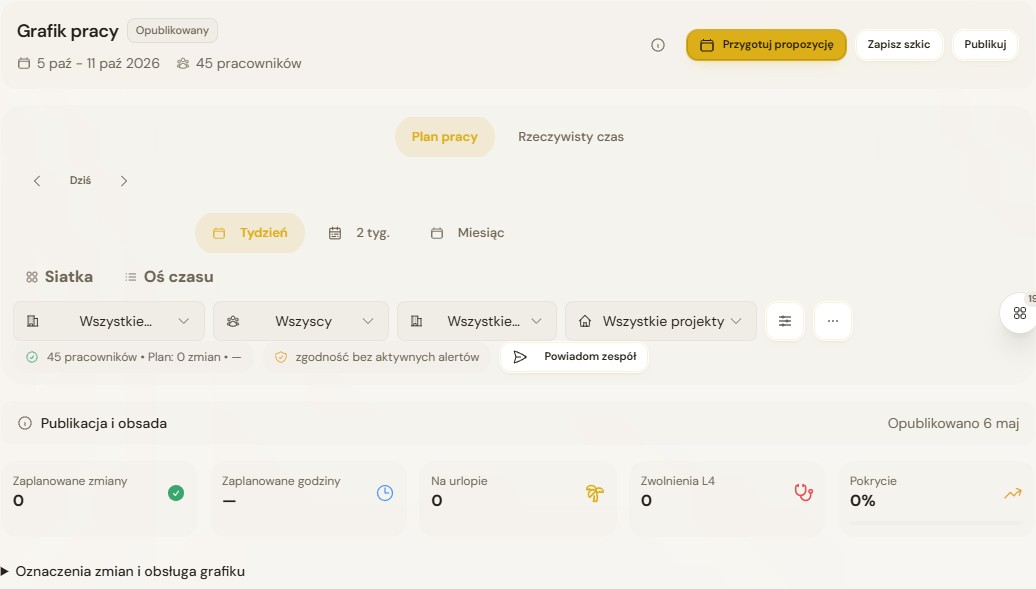 Preparing a proposal, saving a draft and publishing are separate actions.
Add or edit a shift by hand
- Click an empty cell next to a team member and a day. In the "Add shift" window, check the person and the date.
- Choose the shift type, the start time and the end time. Add a note if you need to.
- Choose "Save", then check the shift in the grid. To edit it, open the existing shift.
A shift can be saved before the schedule is published (note) Saving a single shift updates the plan. Publishing is a separate step. Do not treat an unpublished schedule as a place for unsaved experiments.
Ask AI for a proposal
- Choose "Prepare proposal". The scope covers the period and the staff selected by the filters.
- Choose a fitting work pattern, for example fixed hours, rotation or "Salon and visits". In the "Schedule hints" field, describe opening hours, the staffing you need and any limits.
- Read the scope and the estimated cost. Choose "Prepare proposal" in the window to start the preparation.
- Review the proposed shifts and the remarks. Check days off, hours, staffing and whether it matches what you actually agreed with the team.
- If the plan needs changes, improve the hints or go back to planning by hand. Only "Apply schedule" saves the accepted proposal. It does not publish it for the team.
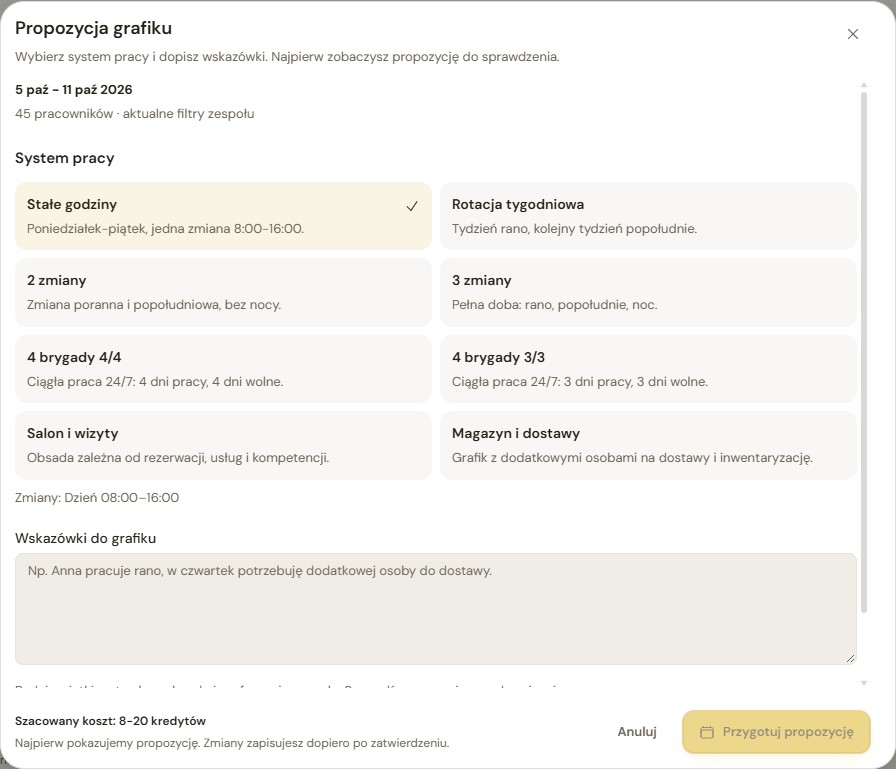 Choose a pattern and add your real limits before you prepare the proposal.
The proposal needs your check (warning) AI does not know everything you have agreed in your company. Check every proposed shift before you apply it. Generating a proposal does not confirm that the schedule complies with labour law.
Save a draft and publish the checked plan
- Choose "Save draft" to keep a version of the plan for further work. In the "Publication and staffing" section you can also use "Send for review". This is not publishing.
- Check the period, staffing, absences and warnings. If publishing reports a compliance problem, resolve it before you try again.
- Choose "Publish". Check the result message and the dates of the published plan. A status for an earlier period does not confirm that the current schedule is published.
- If you want to send a message about the plan, use "Notify team" separately, and check the recipients and the channel before you approve sending.
Publishing and notifying are two separate results (note) A published schedule is not proof that an e-mail or SMS was delivered. Check the sending and its result separately, as with other messages.
When you cannot finish
When something does not work
- I cannot see a team member or the edit button: Check the active company, the filters and the location assignment. Ask the owner to check your access to the schedule. Do not give a broad administrator role just to get around one missing permission.
- The team or absences could not be loaded: Try loading the data again. A loading error does not mean there are no staff or no leave. Do not build a plan from incomplete data.
- AI reports a limit or returns no proposal: Narrow the period or the number of selected staff and check your hints. Read the message about credits or the error. You can continue by hand; you do not have to start more AI attempts.
- The connection dropped after saving: Refresh the right period and check the existing shifts and the publication status. Do not add the same shifts again until you know the result of the first attempt.
See also: