

Before you start
- Choose the right company. You need access to Documents and consents and the right to prepare a document.
- Have the details of how the service actually went. Use only the data the document needs.
Choose the right document
- Open Documents and consents → New document. In the template search, type for example "treatment card".
- Choose "Treatment card" if you want to record how the service went, the products used, observations and recommendations.
- If you need the client's decision before the service, choose the separate "Treatment consent" template. Check its scope instead of using the treatment card as a consent.
A card and a consent are not the same thing (note) The treatment card describes how the service went. The treatment consent is a separate document. Choosing a template does not mean you have the client's consent, or that every legal requirement is met.
Fill in the card and link it to the client
- In "Link to CRM client", choose the right contact if the document should be linked to their card. Typing a name does not replace choosing a CRM contact.
- Check the client's name, the visit date, the service name and the person who performed it. Do not pick a similarly named person without checking.
- Fill in "Treatment course" and "Products used and amounts". Describe what was done, not a planned service that has not happened yet.
- Add the real observations and the recommendations you gave. Do not enter health data just because the form has such a field.
- Choose "Prepare draft" to review the content before saving. The card template is built from the form data; AI suggestions are a separate option.
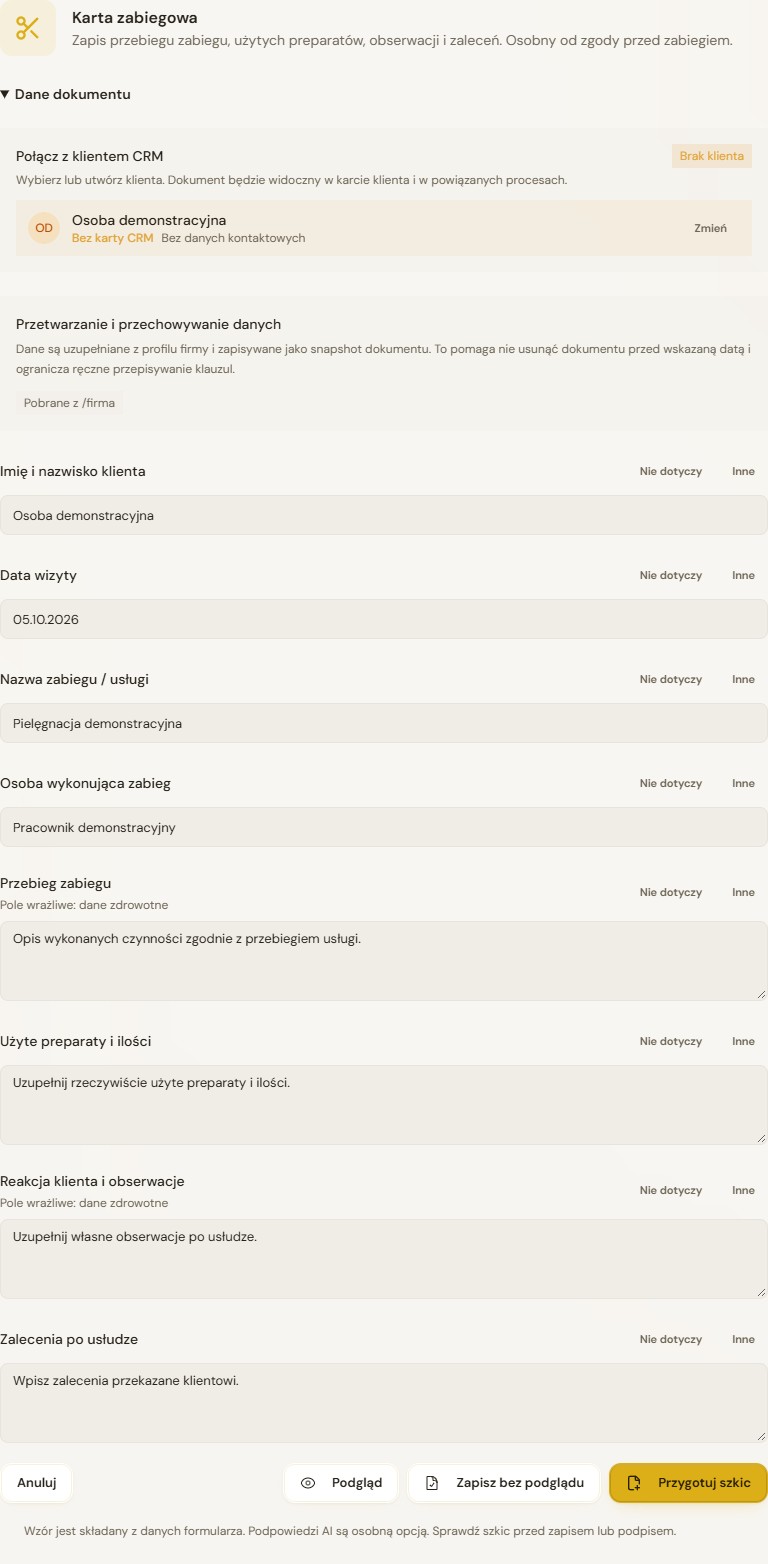 Link the card to the right contact and describe how the service actually went.
The product list does not change Inventory (note) Entering products in the card records that they were used. It does not automatically reduce the Inventory stock level. Check the Inventory operation separately.
Review the draft and correct the content
- In "Your document", read the full content, including the lower part of the scrolling preview. Check the data, the service course and any remarks on the draft.
- If you need to change the ready text, choose "Edit content". Do not assume the content is correct just because the preview looks complete.
- If you change the form data after preparing the document, prepare the draft again. This replaces the draft content, including manual edits, so keep anything you need first.
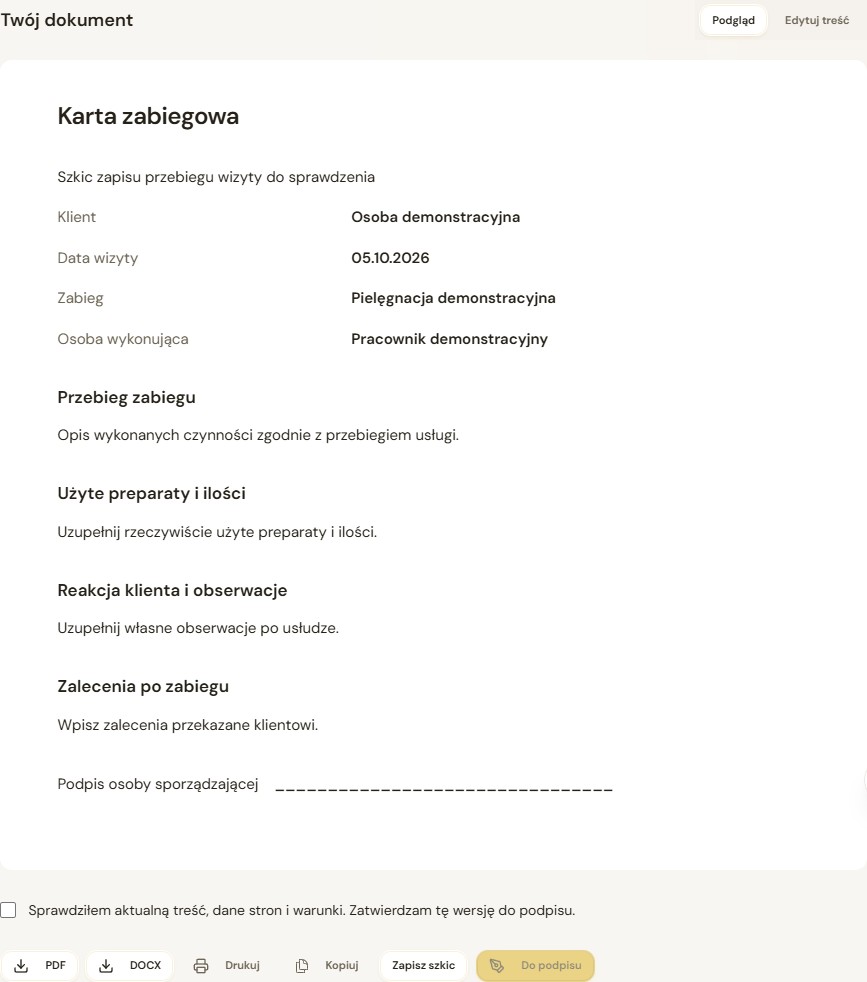 Check the current content. Saving the draft and sending it for signature are separate actions.
Save the draft or send the checked version for signature
- Choose "Save draft" if the document needs more work. Check the result message and find the document in the module, for example in the "All" tab.
- Before sending it for signature, read and confirm the current content, the details of the parties and the terms. Do not tick the confirmation on the client's behalf; it covers your own check of the document.
- Choose "To sign" if the document is ready. Check its status in the tab of the same name. Sending for signature does not mean the client has already signed.
A preview is not a save, and a save is not a signature (warning) Check the result of each step separately. Do not treat a consent as given or a document as signed on the basis of a draft or of sending it for signature alone.
If the document cannot be saved or signed
When something does not work
- The To sign button is inactive: Check that the draft has content, that the form data did not change after you prepared it, and that you confirmed your check of the current version. Do not skip the check after an edit.
- The document is not visible on the client's record: Check the link to the CRM contact, the active company and your permissions. A name typed by hand is not proof of a link to a specific client card.
- Data is missing or remarks appeared: Fill in the right information and check the content again. If you have legal doubts, consult a qualified person about the document. The assistant and the template do not replace that judgement.
- A connection error occurred after saving: First check the document list and the result of the first attempt. Do not save another copy blindly. Give support the company name, the time and the message, without the card content or client data.