

Before you start
- Sign in to the same account and choose the same company in which the chat took place. History in this panel belongs to your account in that company.
- If you see an error saving the latest messages, save them again before you refresh the page. Text on the screen is not confirmation that the history was saved.
Find an earlier chat
- Open Asystio AI from the bottom bar of the portal and check the company name at the top of the panel.
- Choose "History". On the list, recognise the chat by its title, date and number of messages.
- Choose a chat to return to its content in "Chat". You can read the replies and continue the same matter.
- If "Load earlier chats" appears at the end of the list, use it to load the next part of the history.
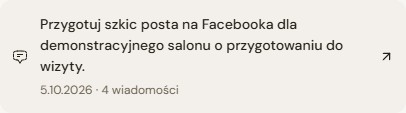 The title, date and number of messages help you pick the right chat.
Older history may be incomplete (note) Older versions of the panel kept summaries instead of full chats. Missing old content does not mean the operation was not done. Check its result in the relevant module too.
Expand the stages under a reply
- In "Chat", find the right command and expand "Reply stages" under it. The details are collapsed by default; you can also open them with the Enter key once they have focus.
- Read the saved stages and their times. "Task accepted. Waiting for the result" means waiting, not that the work is finished.
- Read the reply and look at the result below the stages, without changing the view. A saved "Reply ready" stage does not confirm publishing, sending or a change in a module.
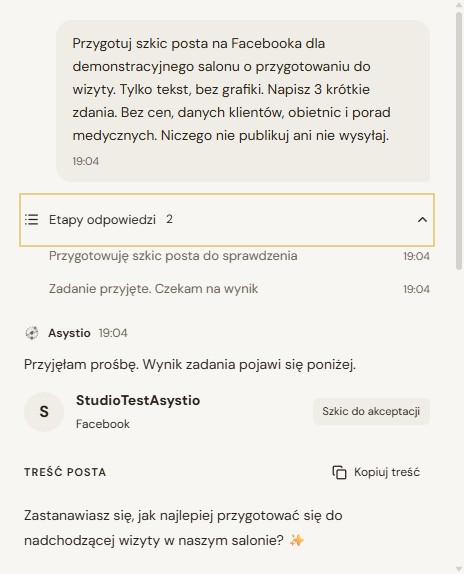 The stages and the start of the result belong to the same command. You can collapse the details and read the full result below.
Tell a forecast request from its result
The commands "/prognoza zapasy", "/prognoza przychody", "/prognoza cashflow" and "/prognoza klienci" each request a separate task. The message "Task acceptance confirmed" means the request was accepted, not that the forecast is done.
The confirmation stays in the saved chat. This entry does not update itself into the finished report. Before you decide anything, check the result, its date and the source data in the relevant module.
If the start was not confirmed, the task may already have been saved. The chat does not repeat a request on its own. Check the existing result before you send the same command again; "Save again" only repeats saving the chat.
Find the finished material, not just the confirmation
A post draft from a command in the chat appears under the reply in Chat. It may finish later than the short message saying the request was accepted.
Next to the result you will find "What next" with the available buttons, for example shortening the text or opening a module. Check what an action does before you choose it.
"Materials" is a separate view for maps, presentations and extra tools, not a full archive of replies from Chat. Look for a post draft in its chat, not in Materials.
In the preview of an extra material, check the summary, the sources and the review status. Some previews do not show the full content.
If "Check progress" or "Download again" appears under the reply, the button reads the existing result. It does not request the draft again.
See also:
What stopping a reply means
While Asystio works, you can choose "Stop". It stops the reply in the chat, but a task already requested may still finish in the background. Do not treat Stop as cancelling every save or send.
Before you repeat a command, check its existing result and the relevant module. A new request may create another task and use AI points again.
The "Hide Asystio panel" button closes the panel. If a voice conversation is running, hiding the panel does not end it; use the separate control to end the conversation.
Tell an error from an empty history
When something doesn't work
- History could not be loaded: Choose "Load again". A read error does not mean there are no chats. If there are no unsaved messages, you can refresh the portal and open the panel again. If the error returns, report the company, the time and the message.
- Latest messages were not saved: Stay on the page and use "Save again". This button repeats saving the history, not running the AI task. Do not close or refresh the page until the save result is clear.
- The chat I remember is missing: Check the account, the company and the earlier pages of the list. History of another account or company does not appear here. Do not widen permissions just to get someone else's chat.
- The task result could not be read: Use the available button to read it again and check the relevant module. A result error does not mean an empty database or that nothing was done. If a send is unclear, do not request a second message before you check the first.
When you need the company history
Chat history and its stages are not a full record of company events. If there is a problem with a visit confirmation, an SMS or an invitation, the owner or an administrator can check Settings → History and problems.
For a report, the company panel address, the time, a description of the command without private data and the visible message are enough. Do not send the whole chat, client data or login codes.
See also: